Budget-Time User Guide
Everything you need to go from a blank spreadsheet to a self-updating view of your money. Ten minutes, start to finish.
1. First-time setup
Install Budget-Time from the Google Workspace Marketplace, then open a Google Sheet -
a fresh, empty spreadsheet is best - and choose
Extensions → Budget-Time → Open Budget-Time…
💡 During install, don't skip the "Additional setup" step - click "Complete additional setup now" and it opens our 2-minute visual Get Started page, which walks you to your first imported transaction. (Closed it already? Just use that link.)
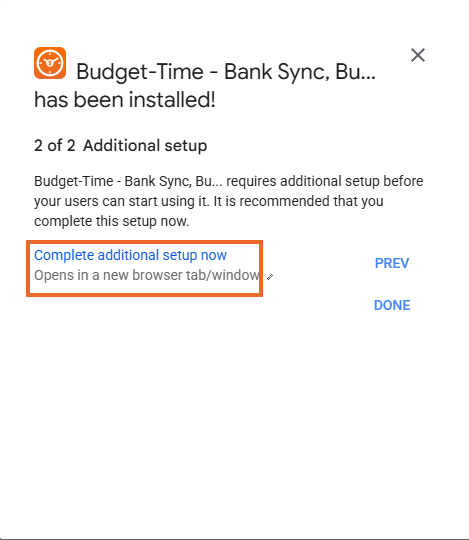
The first run asks for permissions. Budget-Time deliberately requests the minimum: access to this spreadsheet only (never your Drive or other files), permission to contact our service, and your email address. Approve once per Google account - you won't be asked again on this or future spreadsheets.
You can link banks right away - when your first import runs, the sidebar asks you to start the 14-day free trial from the Plan tab ($0 today; choose Annual or Monthly, cancel anytime). Prefer to start the trial first? That works too.
2. Linking your banks
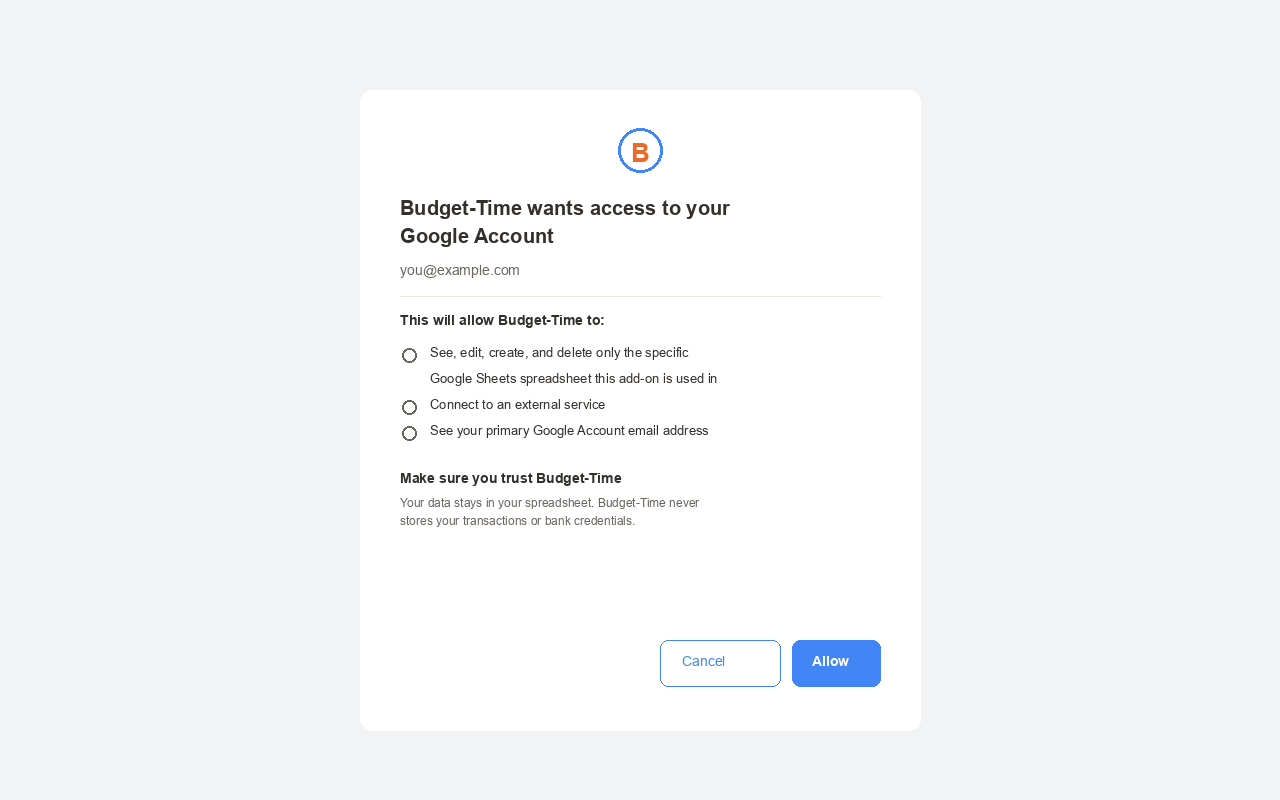
In the sidebar, click Link New Bank Account. A small secure window opens on budget-time.com where Plaid - the same connection service used by Venmo, Chime, and thousands of financial apps - connects you to your bank. Your credentials go to Plaid and your bank only; Budget-Time never sees them.
One linking session connects one institution, including all the accounts you select at that institution (checking + savings + the credit card, in one go). If you've used Plaid in other apps before, it may recognize your phone number and pre-fill your linked institutions to make this faster - but each app you use, including Budget-Time, gets its own authorization from you. No app can see what you linked in another app.
When the window says Bank connected! it closes itself and your initial import begins - full available history, which for most banks is somewhere between 90 days and 2 years (your bank decides, not us). Give the first fetch a few minutes - it's building all your sheets, not just importing rows.
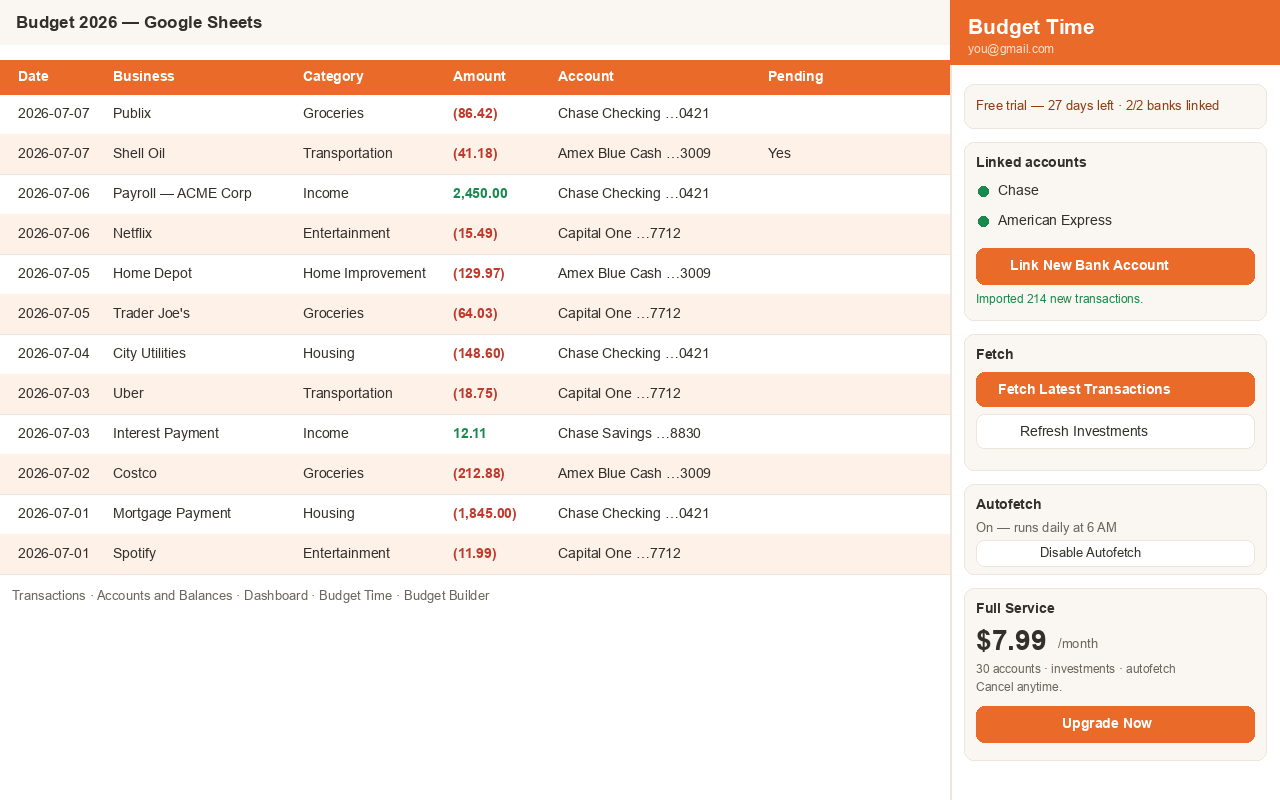
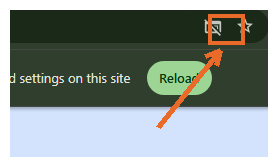
⚠️ "Pop-ups blocked" - nothing opened when you clicked Link New Bank Account? The secure linking window opens in a new tab, and Chrome sometimes blocks it. The fix takes two clicks:
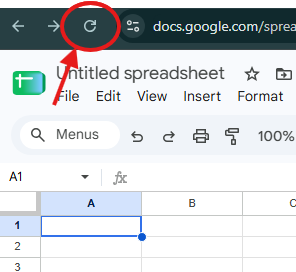
1. Look for the blocked-popup icon at the right end of the address bar and click it. Don't see the icon? Click your browser's refresh button (keyboard refresh shortcuts don't work inside Sheets - it captures them as spreadsheet commands), then click Link New Bank Account again.
2. Choose "Always allow pop-ups and redirects from https://docs.google.com" and click Done, then click Link New Bank Account again. ("Continue blocking" keeps the linking window from ever opening.)
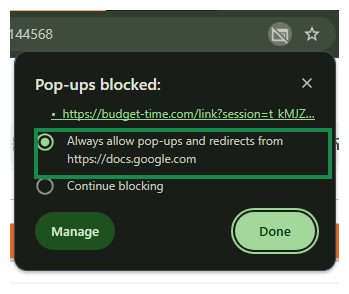
This is a one-time fix - Chrome remembers it for all your future linking.
3. Fetching & Autofetch
Fetch All Banks pulls everything new since last time. Every fetch reconciles exactly: new transactions are added, pending ones update when they post, and removals are honored - you will not get duplicates, even if you fetch twice in a row. The server advances its sync cursor only after your sheet confirms the batch was written; an interrupted sheet write is safely replayed on the next fetch.
Autofetch does this for you once a day at the hour you pick. Changing the hour saves immediately. It runs under your Google account even with the sheet closed.
4. Your sheets, explained
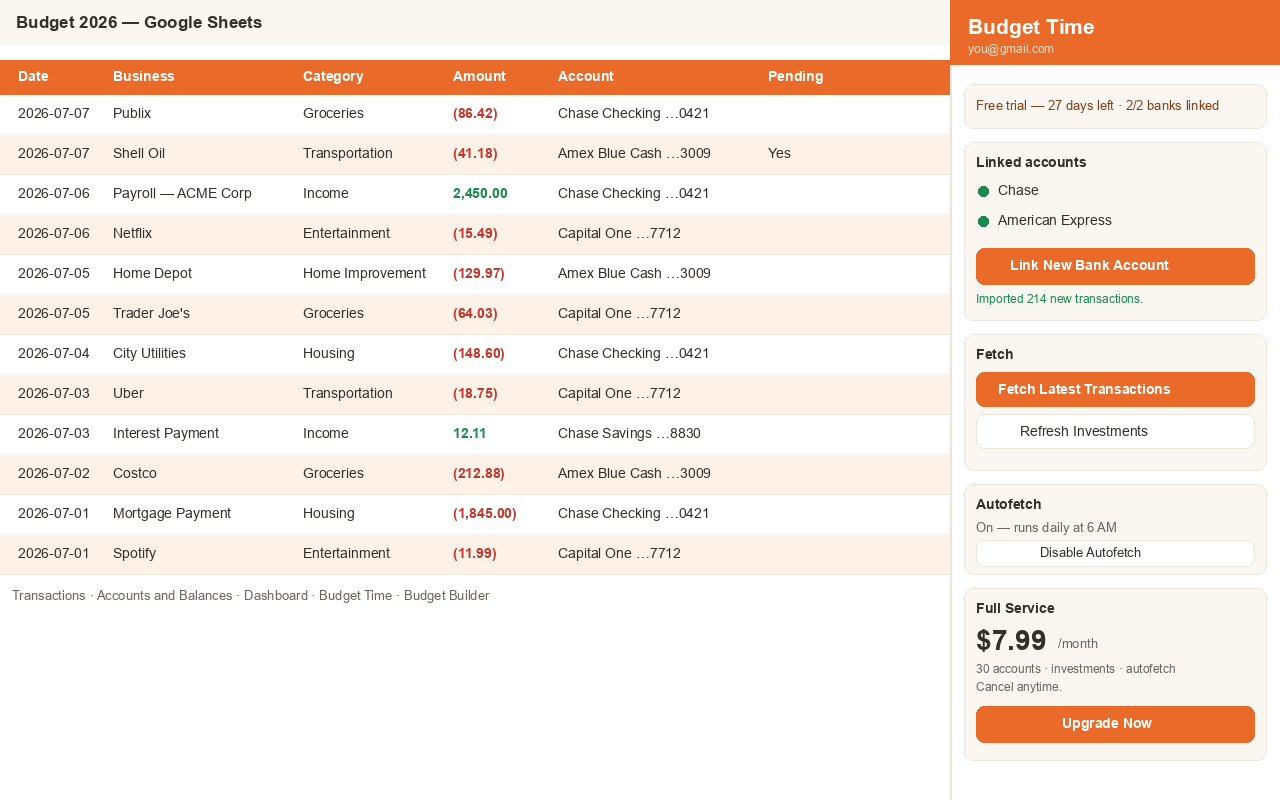
- Transactions - your ledger. Columns: Date, Business (clean merchant name), Description (full bank descriptor), Category, Amount, Notes, Pending, Account, Transaction ID, and Account ID. The two IDs are stable identifiers that prevent duplicates. Amount shows income as positive with a green fill and spending as negative in red parentheses (flip this in the sidebar if you prefer). Edit Notes and add your own columns from K rightward freely; the importer won't touch them.
- Accounts and Balances - one row per account: balance (credit cards and loans show as negatives - they're money owed), available credit, limit, utilization, and the interest rate (APR) where your bank reports it through Plaid.
- Balance History - one row per account per day. The newest Updated value appears at the top; use the filter in column E for a date range. Daily snapshots feed monthly balance charts, where the last available day of each month represents month-end.
- Rate History - one dated observation per account per day, newest first, with the change from the prior recorded day.
- Category Rules / COA - your chart of accounts and rules (next section).
- Logs - a plain-language activity log. Include it when contacting support; it contains no account numbers or credentials.
- Investment Holdings / Investment Transactions (Full Service) - positions with cost basis and live GOOGLEFINANCE prices; buys/sells/fees by date range.
5. Categories & rules
Every imported transaction is auto-categorized. Take control in Category Rules / COA:
- Match Patterns - comma-separated text or regular expressions matched
against the merchant/description. First match wins. Example: put
home depot, lowes, ace hardwareon your "Home Improvement" row. - Map To Category - remap Plaid's built-in categories to your names,
e.g.
FOOD_AND_DRINKon your "Dining Out" row.
Budget-Time fingerprints these rules. If you edit a pattern or mapping, the next fetch
re-applies the rules even when no new transactions arrived and tells you how many existing
rows changed. To re-apply them immediately after editing patterns or adding rows by hand, use
Extensions → Budget-Time → Data Health → Run Category Rules. Rows no pattern claims keep
whatever category they have, so your manual edits survive.
6. Dashboard, Budget & Budget Overview
Install these from Extensions → Budget-Time → Budget:
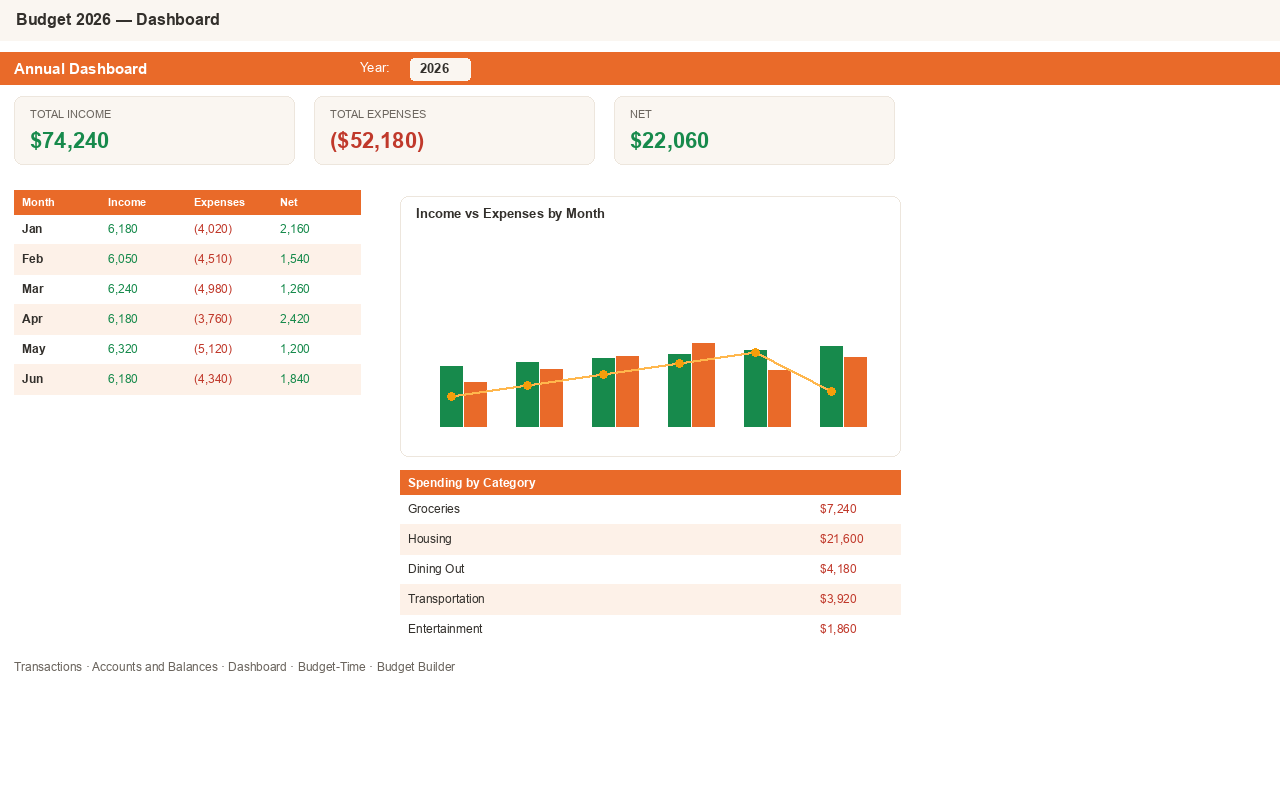
- Dashboard - pick a year from the dropdown and everything updates: income vs. expenses by month with a chart, spending by category, live balances, and Monthly Account Balances (end-of-month snapshots per account, from Balance History).
- Budget Overview - the fast way to write a budget: one column per month, one row per category. Type January's number and drag it across the year, then fine-tune individual months.
- Budget to Actual - the full budget-vs-actual grid. Budgeted numbers come from Budget Overview automatically; Actual, Diff, and % Used compute live from your transactions for the selected year.
Turn on Keep a history row for every sync in sidebar → Tools → Data Health only if you need intraday Balance and Rate History. Dedupe respects that setting and removes only exact-timestamp duplicates while it is enabled.
The budget templates currently support up to 40 budget categories. If Category Rules contains more, the wizard reports how many are outside the template instead of hiding the limit silently. Keep additional categories for transaction reporting, or consolidate them before building the 12-month plan.
7. Payments & debt payoff
Payments Tracker creates one row per liability and bill month, preserves your checkmarks and entered amounts, and projects expected due dates through at least the end of next month. The calendar displays both the current and next month. Auto-match only accepts a same-account transaction with payment wording or a transfer/debt-payment category; an ordinary card purchase cannot mark a bill paid. A manually checked row stays amber until Amount Paid is entered, so an unverified checkmark does not look complete. Always verify bank-reported due dates and minimums against your statement.
Get Out of Debt Plan compares true snowball and avalanche simulations month by month. Both hold your total payment constant—minimums plus all Extra $ / Mo—and roll freed payments into the next target. The comparison shows payoff months, estimated total interest, and a debt-free date. A 0% APR is handled correctly. Missing minimums must be entered before the simulation can run.
8. AI prompts—with or without Gemini
Use Extensions → Budget-Time → AI Prompts to copy ready-made questions. If
Gemini is available in Sheets, paste a prompt into its sidebar. If it is not available,
choose File → Download → Microsoft Excel (.xlsx) and upload that private copy
to an AI assistant you trust. The downloaded workbook contains financial information: do
not make it public, use only a trusted account/service, and delete the upload when finished.
9. Themes
Extensions → Budget-Time → Themes restyles every Budget-Time sheet in one
click - colored tabs, styled headers, and alternating row shading for readability. Twelve
looks include Sunset, Forest, Ocean, Slate, Plum, Midnight, Dark Mode, Sunrise, Mint,
Rose, Coffee, and Steel. All themes keep the money rules:
income gets a soft green fill; negative amounts stay red in parentheses.
10. Bank connections: what to expect
A few realities of bank data - these apply to every app built on bank connections (Mint did, Monarch, Simplifi, and Tiller do), not just Budget-Time:
- A few large institutions are still unlocking. Most banks connect instantly. A handful of major institutions (for example Bank of America, Charles Schwab, PNC, and U.S. Bank) require an additional partner review before new apps can connect - ours is in progress. If your bank doesn't appear or won't finish connecting yet, that's usually why; check back soon or email support and we'll tell you exactly where it stands.
- Connections occasionally reset. Banks periodically require you to re-authenticate - after a password change, a security review, or simply on a schedule they control. When that happens your account shows Needs re-link in the sidebar; click Reconnect, sign in again, and syncing resumes exactly where it left off. Nothing is lost, and no app on any platform can prevent this - it's your bank protecting you.
- History depth varies. On first import, most banks provide 90 days to 2 years. That's a bank-side limit.
- Timing varies. New transactions usually appear within hours of posting; pending items show quickly and update when they settle. Some smaller institutions refresh once daily.
- Interest rates aren't universal. APRs come through only where the institution reports them; the Interest Rate column stays blank otherwise.
Which countries are supported?
Available today: United States and Canada - 12,000+ banks and institutions.
Rolling out next - Europe: United Kingdom, Ireland, France, Germany, Netherlands, Belgium, Austria, Spain, Italy, Portugal, Denmark, Sweden, Norway, Finland, Poland, Estonia, Latvia, and Lithuania. Our bank network already covers these countries; we're switching them on for Budget-Time. Email [email protected] with your country and bank and we'll notify you the moment yours goes live.
11. Troubleshooting & updates
A header was renamed, moved, or deleted
Run Extensions → Budget-Time → Data Health → Repair Headers & Widths.
A blank label or capitalization-only change can be restored automatically. Budget-Time does
not guess about an unknown label or a moved/deleted column: it pauses writes and records the
exact problem in Logs. Use Google Sheets version history or a backup to restore the canonical
name and order, then run Repair again.
I edited category rules but nothing changed
Run Re-apply Category Rules from Data Health, or run Fetch All Banks. The fetch detects the rule change even if zero new transactions arrive and reports the number of existing rows recategorized.
My Payments sheet has the wrong month or marked the wrong charge
Bill Month is the month of the due date, not necessarily the month you paid. Correct the dropdown if your statement cycle differs. If an auto-match is wrong, uncheck Paid and clear Amount Paid, Date Paid, and How; then make sure the transaction is categorized correctly. Rebuild Payments to refresh future rows without overwriting manual paid rows.
Balance or trade history is hard to read
Balance History is sorted by Updated (column E) newest first. Investment Transactions is sorted by Date newest first. Both have filters: click the filter icon to choose an account, symbol, type, or date range.
The Updates page shows a newer build, but my sheet still has the old one
Open the sidebar's Plan tab and compare its add-on build with the Updates page. Close and reopen the spreadsheet once. If the build still differs, a hard refresh or reinstall cannot fix a Marketplace deployment that still points to an older Apps Script version. Contact support with the build shown; Budget-Time must publish a new Apps Script version, update the existing deployment to that version, and set the matching Marketplace SDK add-on version. Existing users should then receive it without reinstalling.
A fetch stopped halfway through
Run Fetch All Banks again. The cursor is confirmed only after sheet writes finish, so an interrupted batch is replayed safely and transaction IDs prevent duplicates. Include the Logs sheet when contacting support.
CSV import rejected a date or header
Map Date, Description, and Amount in the preview. Dates must be real calendar dates; impossible or ambiguous dates are rejected instead of silently becoming another day. CSV imports use the same canonical Transactions columns and stable duplicate IDs as bank sync. Files must be smaller than 5 MB; split a larger export into date ranges.
12. Privacy & disconnecting
Budget-Time never stores your transactions, balances, or account numbers - data flows from your bank through our server's memory straight into your sheet (Privacy Policy). Manage Accounts… shows connection health and lets you disconnect any bank instantly; disconnecting revokes our access at Plaid and deletes the connection's token. Everything already in your spreadsheet stays - it's yours.