You're installed. Two minutes to your first import.
No manual - just five quick steps. Not installed yet? Install free from the Marketplace first.
Open a New Google Sheet →Open the sheet you just created
Use the button above, or any blank Google Sheet™ - Budget-Time works on a fresh spreadsheet, not a specific template.
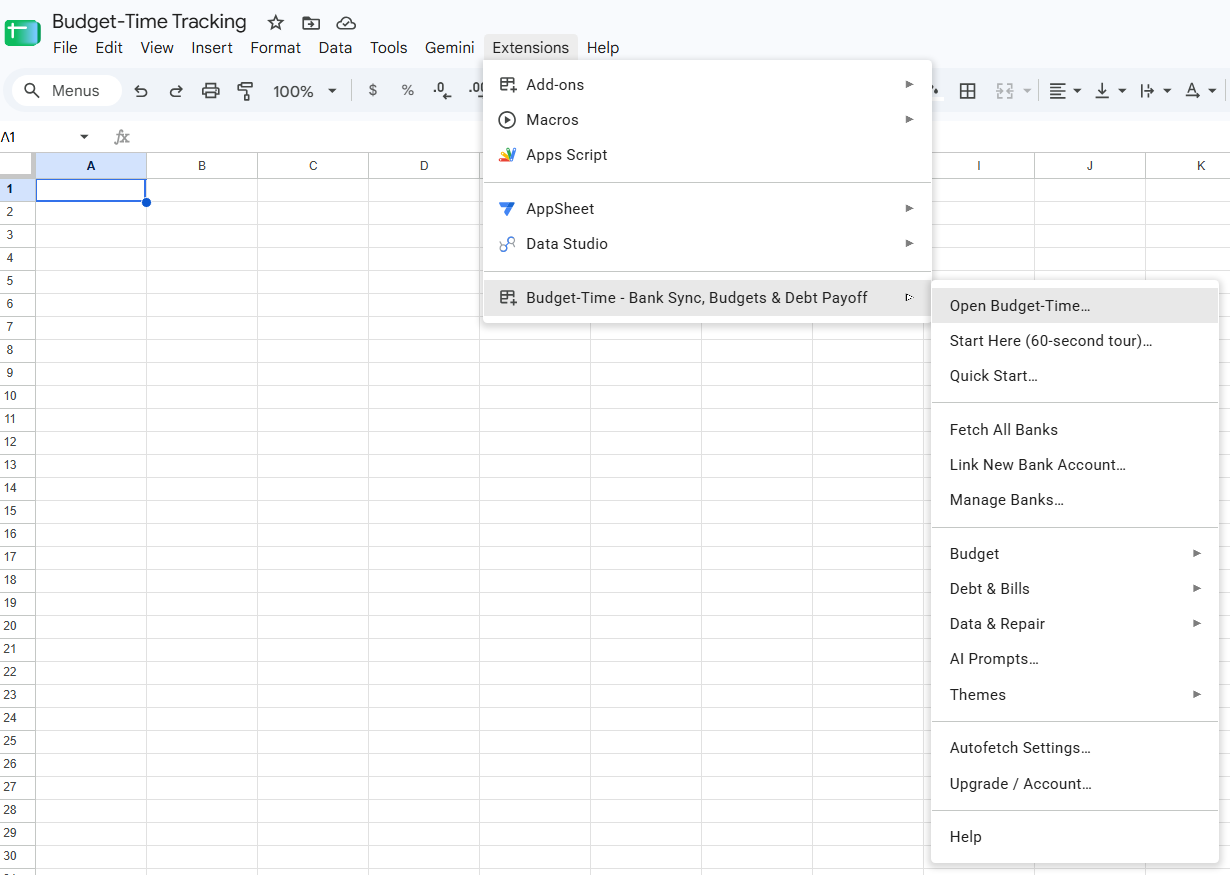
Extensions → Budget-Time → Open Budget-Time
In the Sheets menu bar at the top, open Extensions, find Budget-Time in the list, then click Open Budget-Time. The sidebar opens on the right.
Just installed and Budget-Time isn't in the menu yet, or only "Help" shows? That's normal on the very first load - see troubleshooting below.
Approve access - two quick screens, one time only
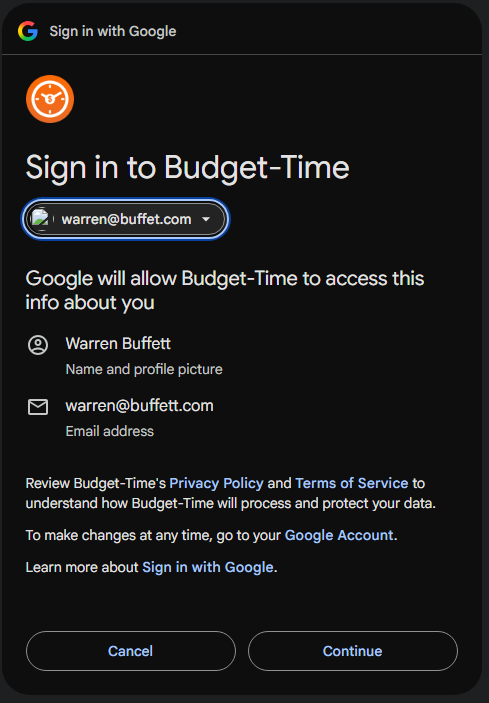
First screen: pick your Google account and click Continue.
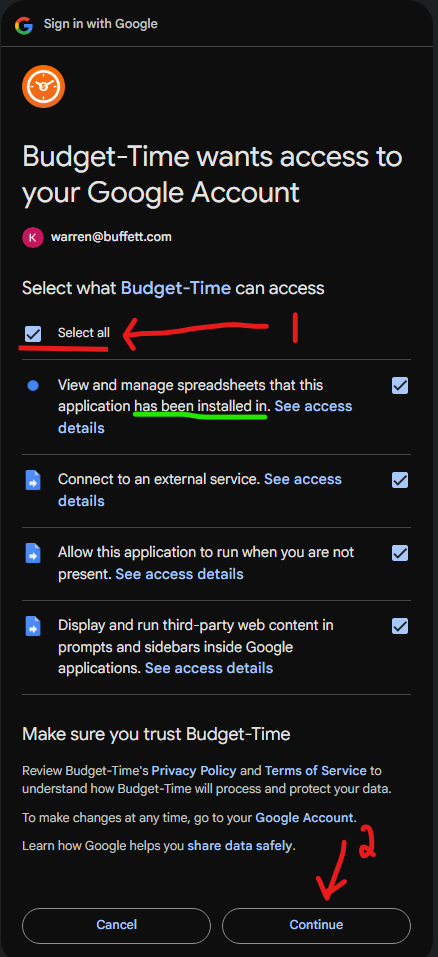
Second screen: tick Select all (1), then click Continue (2). Budget-Time needs all four permissions to work - and note the first one: only spreadsheets this add-on is used in, never your whole Drive.
Start your 14-day free trial
When your first import is ready, open the sidebar's Plan tab, choose Annual ($80/year, save 17%) or Monthly ($7.99/month), then select Start 2 Weeks Free. A card is required, but it is $0 today; the selected price begins on day 14 unless you cancel.
Link your first bank
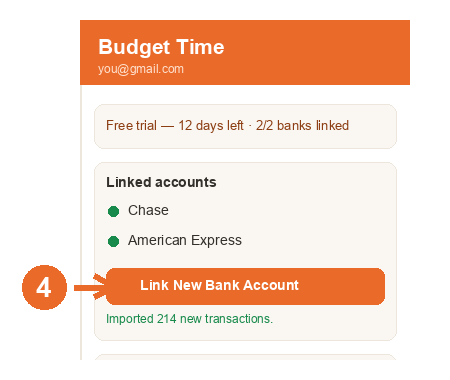
In the sidebar, click Link New Bank Account. A secure Plaid window opens - sign in to your bank there, never on our site.
Bank window didn't open? Chrome may have blocked the pop-up
The secure bank-linking window opens as a pop-up. If nothing appears when you click Link New Bank Account, look for the blocked-pop-up icon at the right end of the address bar:
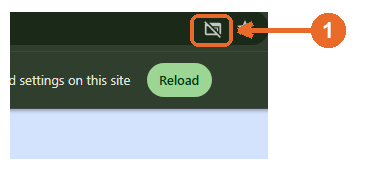
Click it, choose "Always allow pop-ups and redirects from https://docs.google.com", then click Done and try the link again:
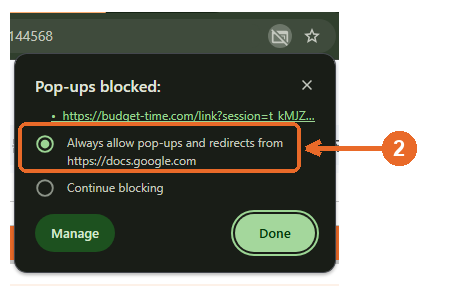
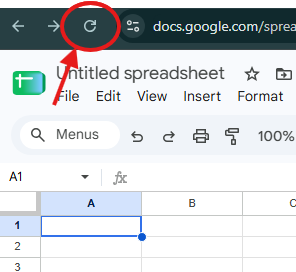
Don't see the icon at all? If you dismissed the notice earlier, Chrome hides it. Click your browser's refresh button (keyboard shortcuts don't work here - Sheets captures them), then click Link New Bank Account again to bring the icon back.
That's it - transactions import automatically
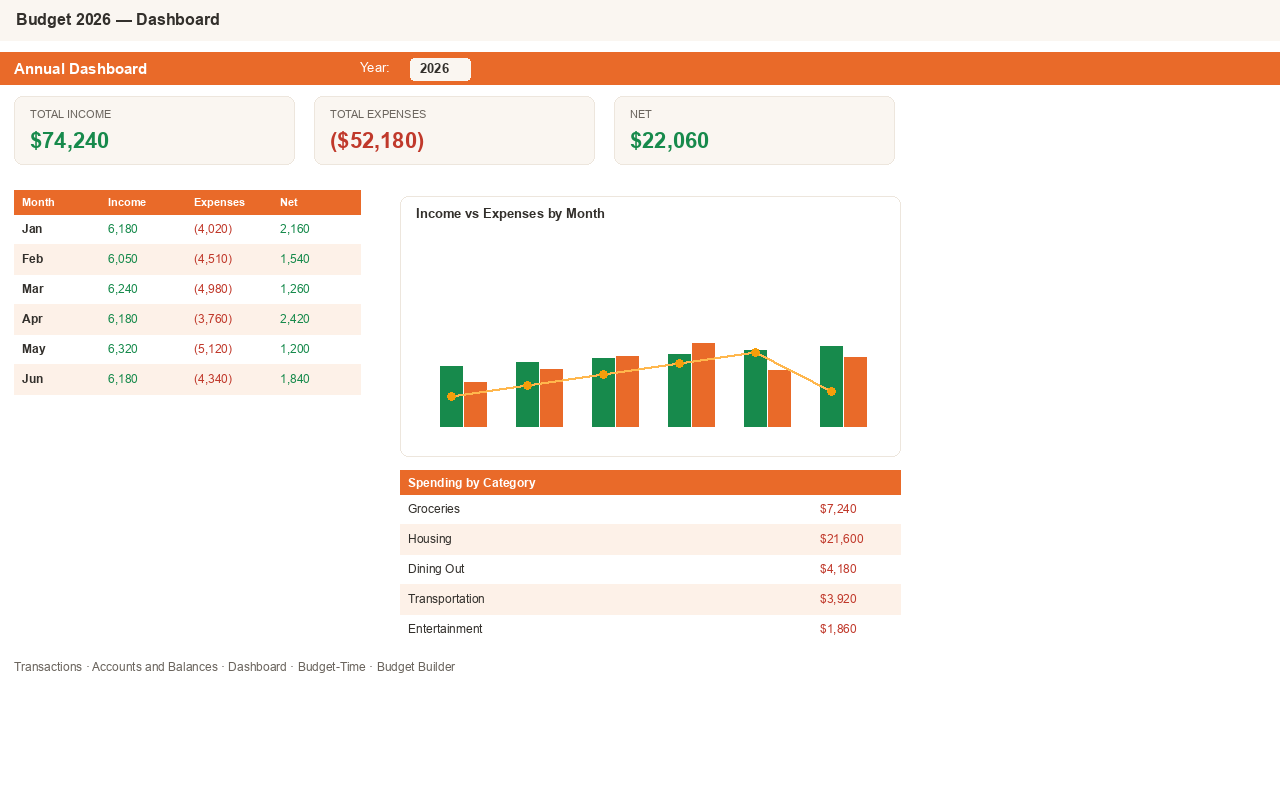
Give the first fetch a few minutes - it's building all your sheets, not just importing rows. From then on, Autofetch keeps everything current every morning.
Troubleshooting: "I installed it, but I don't see it"
A quick why, in plain terms: add-ons don't live inside your spreadsheet - Google runs them on its own servers and wires them into each sheet as it loads. Right after an install, a sheet that's already open doesn't know the add-on exists yet, and the very first launch has to warm everything up on Google's side. That can take up to about 90 seconds and sometimes needs one refresh. Every Sheets add-on loads this way - after the first day you'll rarely notice it.
Refresh the browser tab
Click your browser's refresh button (the circular arrow next to the address bar), then open Extensions again. This fixes it 9 times out of 10. Heads-up: keyboard refresh shortcuts don't work here - Sheets captures them as spreadsheet commands - so it has to be the button.
Menu only shows "Help"?
The add-on is still warming up on Google's side. Give it up to 90 seconds, refresh once more, and the full menu appears.
Still not listed under Extensions?
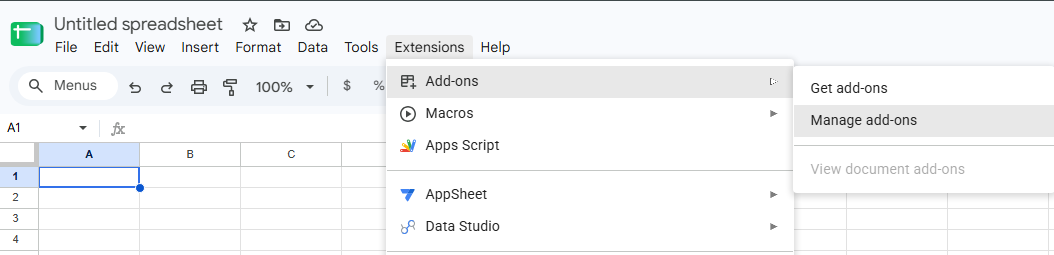
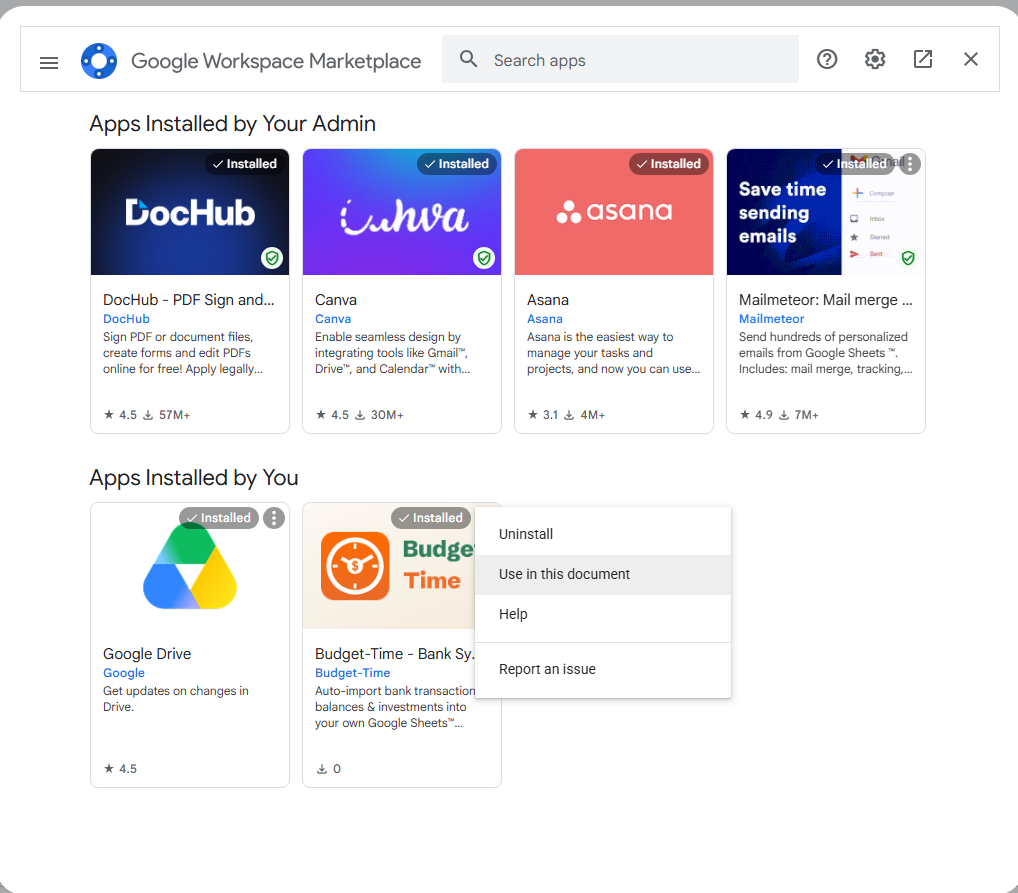
Go to Extensions → Add-ons → Manage add-ons, find Budget-Time, click the ⋮ menu on its card, choose "Use in this document" - then refresh the tab once more.
Still stuck? Email us - we answer fast.